Title here
Summary here
The Green Metrics Tool has the capability to compare two or more measurements.
Comparing measurements is intended to give an insight into the order of magnitude
of energy the running software is consuming under certain circumstances.
Ultimately, these cases for comparing measurements should span the entire
lifecycle of software development and use.
Comparison is currently possible for measurements that are:
If the tool cannot determine which of these you want to compare, for instance because your runs differ in several of them at once, it falls back to the Simple Table comparison, which shows the runs side by side.
To trigger a comparison in the frontend just tick the boxes of the runs you wish to compare and click the Compare: N Run(s) button.
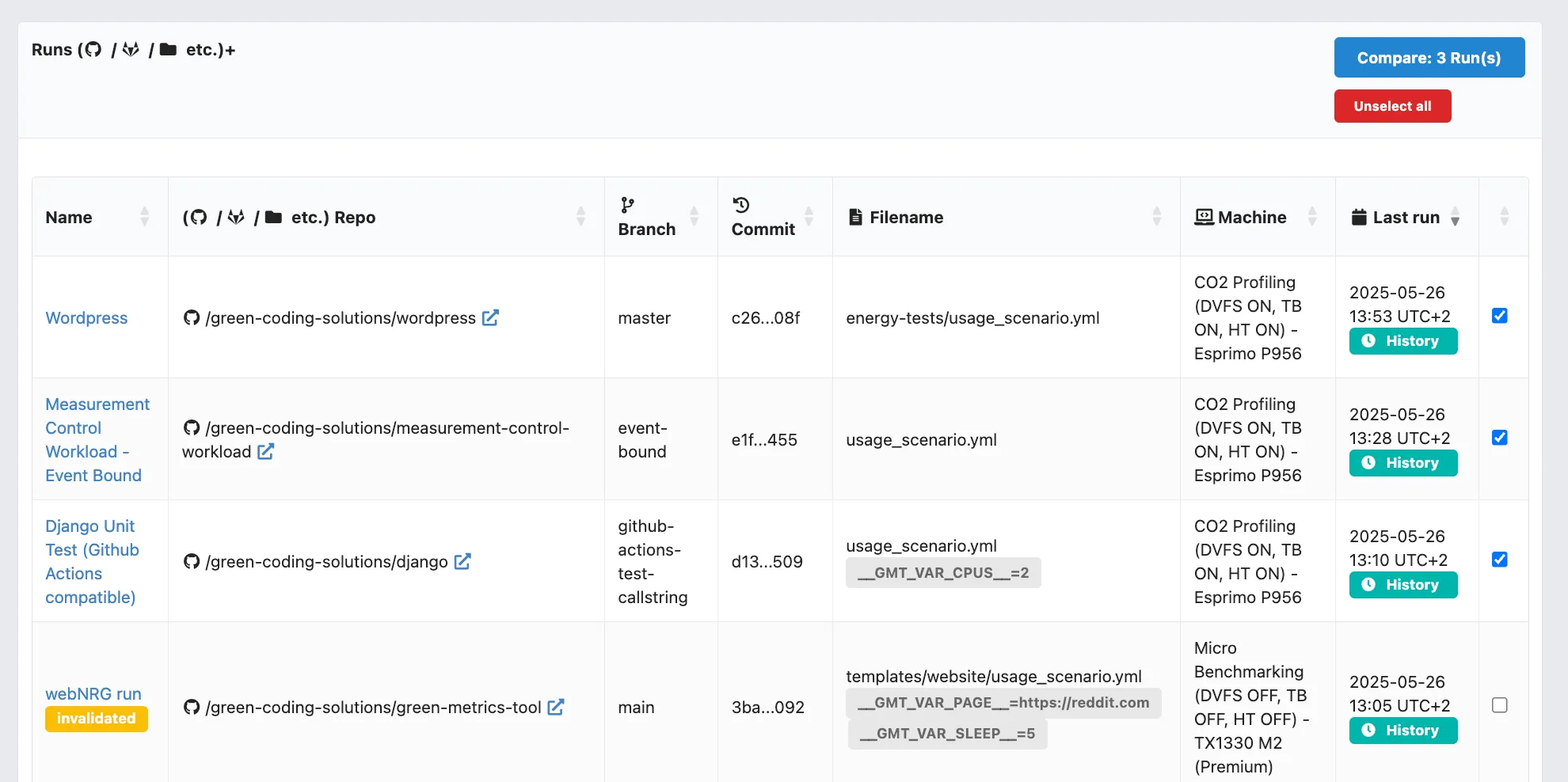
Example of a comparison display
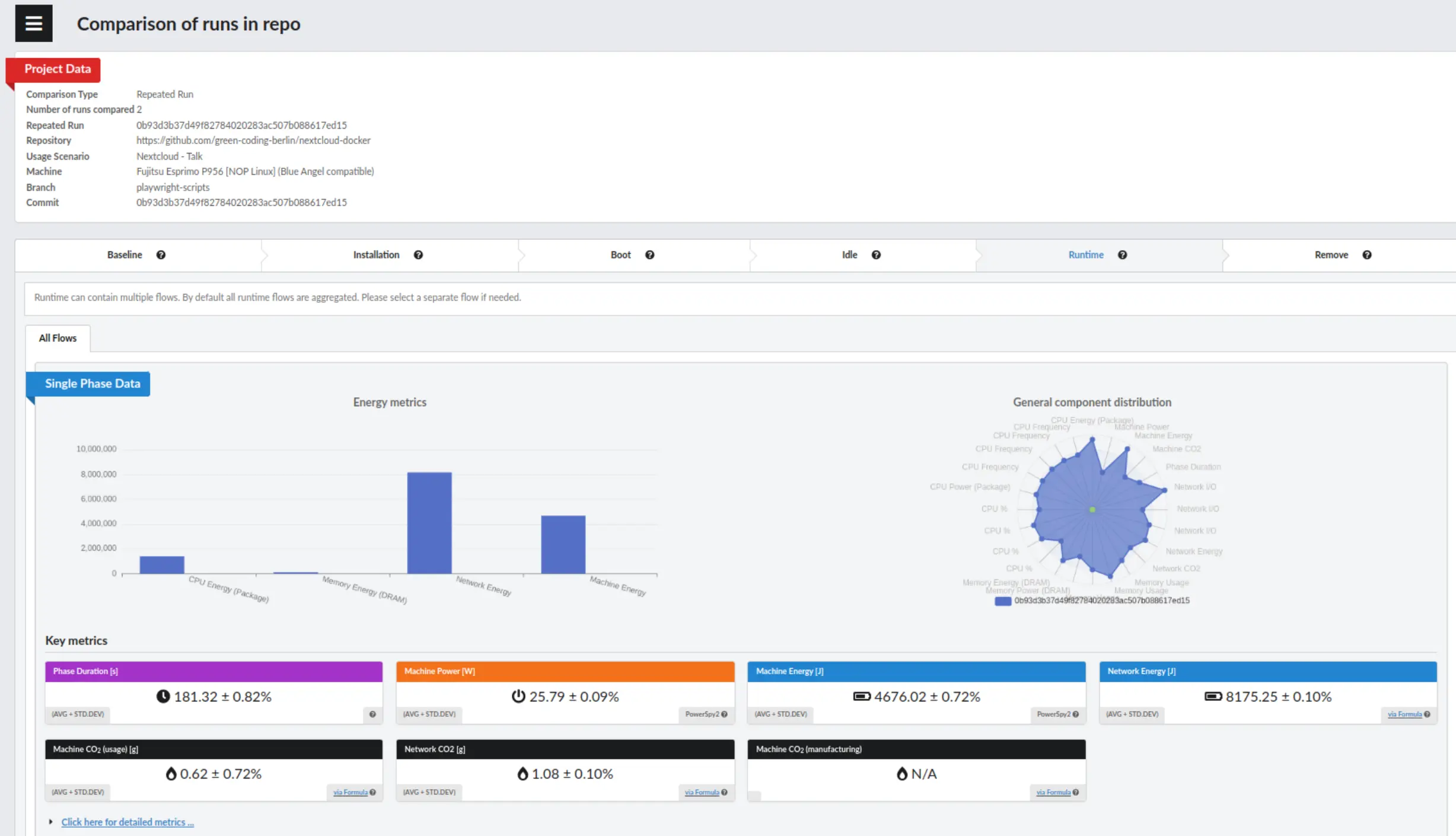
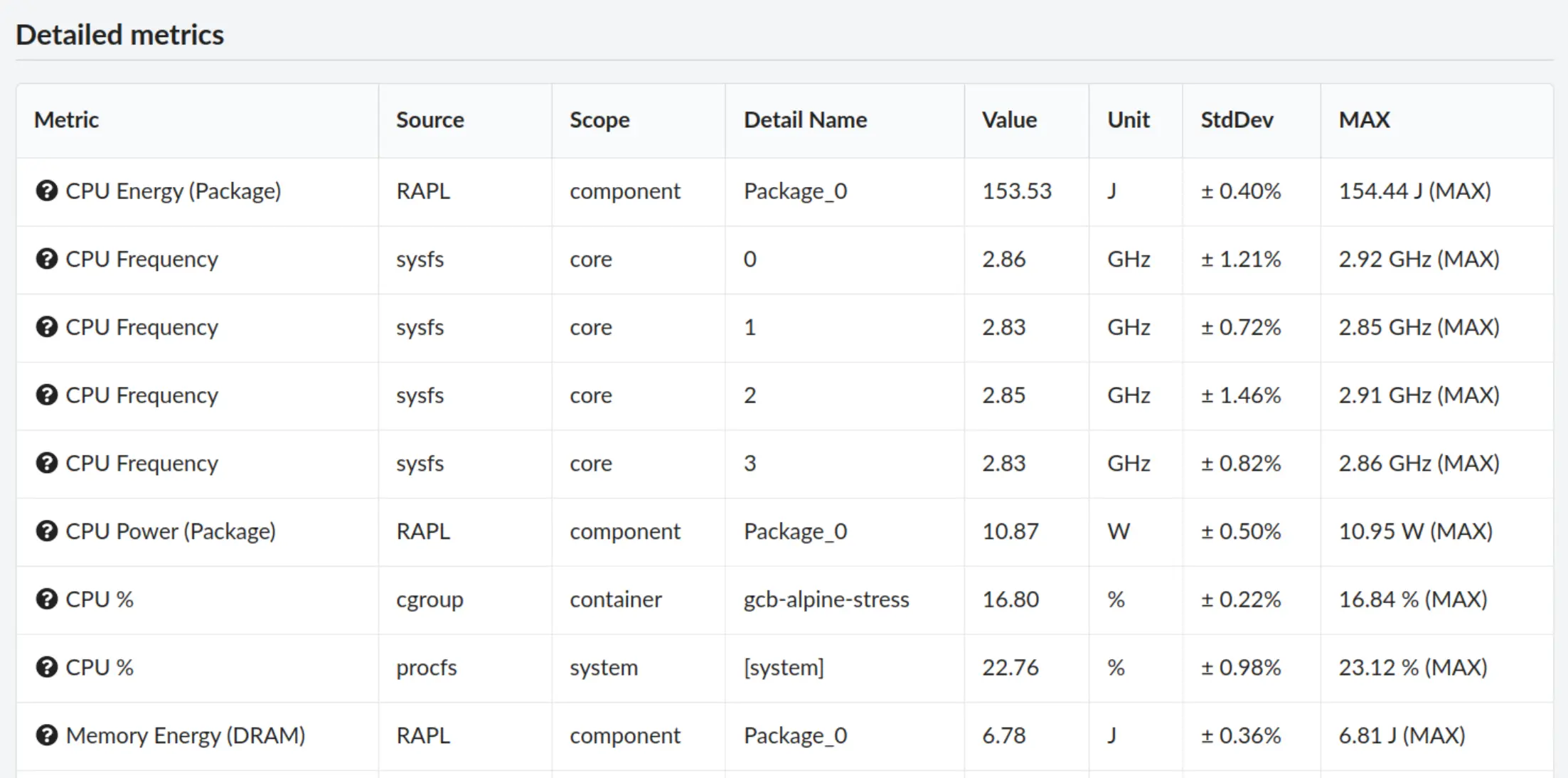
When comparing measurements, you will see the standard deviance on the key metrics
and in a column under the detailed metrics.
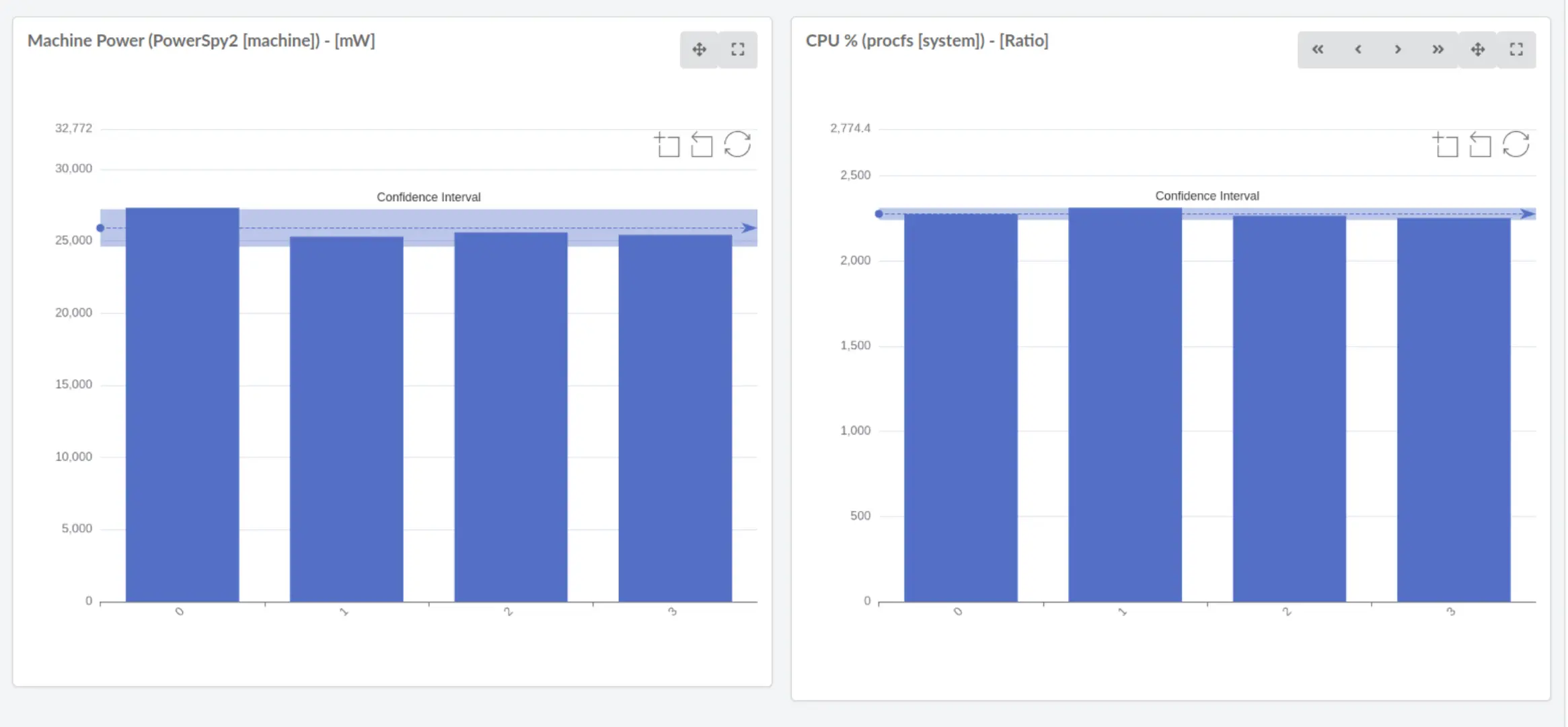
Graphs will also include the confidence interval.
Comparing measurements should help raise awareness of software energy use over time.
In some instances the comparison mode auto detection cannot find a single attribute to compare on. For instance when you compare different machines and also different repositories. In this case the GMT shows the Simple Table comparison instead.
But still there might be instances when you want to force a certain comparison type. For instance when the repository is basically the same as the old one, just has been renamed. GMT does not understand repository renaming currently.
In that or similar cases you can override the default comparison mode auto detection.
As soon as you tick at least one run a Mode dropdown appears next to the Compare button. It defaults to Auto, which is the comparison mode auto detection. To force a mode set it to one of Branches, Commits, Machines, Usage Scenarios, Variables, Repos or Simple Table. Your selection is remembered for the next comparison.
For instance treating runs from different repositories and branches with different commits, which however have run on the same machine as a Machines comparison will effectively compare them as being just repeated runs on the same machine.
For all modes except Simple Table your runs must have one common denominator that has at max two values. For instance:
The Simple Table mode shows the selected runs side by side in one table, with the mean value of every metric for every run. It does not have the requirements of the other modes. It works for any set of runs, even for completely different software or hardware setups, because every run is shown on its own and nothing is grouped.
You get to the Simple Table in two ways:
On the Simple Table page you can:
Since machine, repository, branch etc. can differ between the runs, some metrics and phases might not be present in all runs. Also keep in mind that such a comparison is harder to interpret, because several factors may have changed at once. The Simple Table does not compute a standard deviation or a T-test.
When running a comparison between different commits, different machines etc. the GMT will also compute a T-test for the two samples.
It will calculate the T-test for the means of two independent samples of scores without assuming equal variances. (Some might know this test also as Welch’s t-test or Welch test)
If the p-value is lower than 0.05 GMT will show the result as significant.
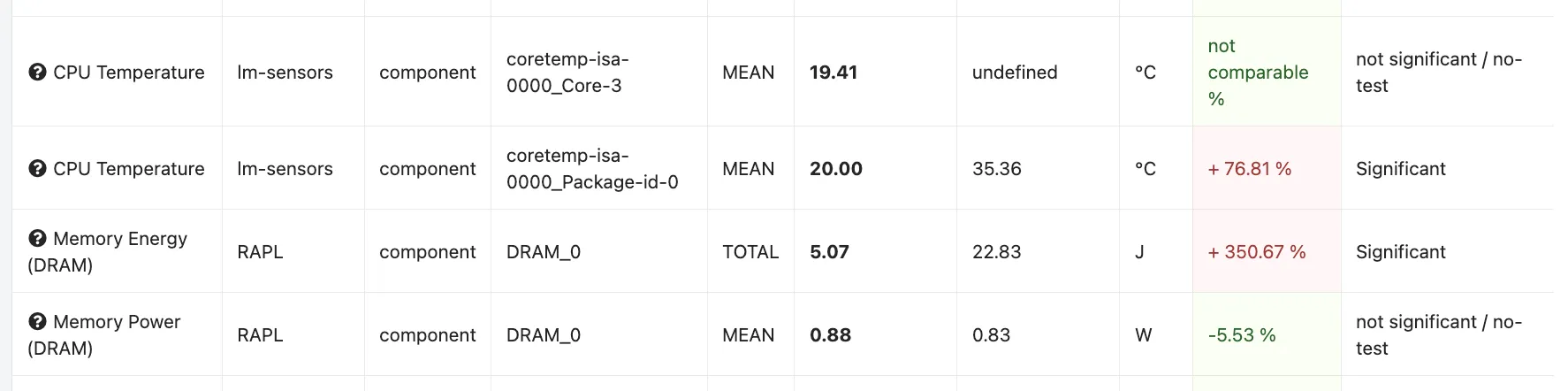
GMT will provide the p-value directly in the API output of the comparison. In the frontend the Significant (T-Test) column will read Significant, or not significant / no-test. The latter also covers the case that no test could be made because there where too many missing values or the metric was not present in all runs.
Note that the green / red coloring is not an indicator for significance. It is applied to the Change column only and merely tells you if the value went up (red) or down (green).
When running a comparison of repeated runs with no diffentiating criteria like different commits, repos etc. the GMT will run a 1-sample T-test. Effectivly answering the question: “Did the last run in the set of repeated runs have a siginificant variation to the ones before”.
This question is very typical as you will have a set of a couple of runs once measured. Then you come back to your code and just re-measure out. The value is now different and you want to tell if it is significantly different.
If the p-value is lower than 0.05 GMT will show the result as significant.
GMT will provide the p-value directly in the API output of the comparison.
Since repeated runs have no second key to compare against, the detailed metrics table in the frontend has no Significant (T-Test) column in this case. The p-value is only available through the API.