Title here
Summary here
Green Metrics Tool supports custom metrics including the Green Software Foundation’s SCI
The metric is essentially a Carbon per Unit of work metric and thus is very flexible in it’s application. Supplemental to the various metric providers that the Green Metrics Tool support this introduces not only the concept of total energy / carbon per usage_scenario, but also the concept of work done.
The parts to derive the metric have to be defined in two places:
usage_scenario.yml (which sets the custom metric and its unit)config.yml, which sets the machine specific parameters like TE, RS etc.The actual ticks for the unit of work (R) are captured from the containers and processes STDOUT. This has to be activated by setting log-stdout (on by default).
Please see an example how to configure in our example applications repository for SCI apps.
A simple integration for an CLI based application might for instance look like this:
name: SCI Test
author: A wizard
description: SCI test scenario

services:
  gcb-alpine-sysbench:
    image: alpine
    setup-commands:
      - command: apk add sysbench coreutils gawk

custom_metrics:
  calculated_prime_numbers:
    unit: CPN
    sci: True # optional. Will create an addtional metric gCO2e/CPN
    # regex: "^(\d{{16,19}}) {key}=(\d+)$" # You can supply a custom capture regex. By default it is a 16-19 digit timestamp followed by *metric_name*, an equal sign and a numeric value

flow:
  - name: Stress
    container: gcb-alpine-sysbench
    commands:
      - type: console
        note: Starting sysbench
        command: sysbench --cpu-max-prime=25000 --threads=1 --time=3 cpu run --debug=off | gawk '/total number of events:/ {cmd="date +%s%N"; cmd | getline ts; close(cmd); print ts " calculated_prime_numbers=" $NF}'
        shell: sh
As you can see we directly parse the output of a CLI command and the output the variable calculated_prime_numbers=… to STDOUT.
If you have an API or similar the output might not happen on the CLI directly, but rather inside a node script or similar.
Custom metrics are defined under the custom_metrics root level key and has the following sub-keys:
metric_name [a-zA-Z0-9_]: Name of the metric internally and in regex capturesunit [str]: Name for the unit to display in frontendsci [bool] (optional): Switch if metric should als be displayed as SCI. GMT will then divide the metric by the total carbon emissions of the run effetively returning a <custom_metric>/gCO2eregex [regex] (optional): A catpure regex. If not supplied the default capture regex will be used: ^(\d{{16,19}}) {key}=(\d+)$ . A 16-19 digit timestamp followed by metric_name, an equal sign and a numeric value.An example configuration for the config.yml is provided when the Green Metrics Tool is installed.
The values for the respective variables have to be either defined to best knowledge (like lifetime for instance) and / or
from official databases (like Embodied Carbon → and Grid Carbon Intensity →). See the respective documentation page for possible sources.
Example:
sci:
    EL: 4 # means 4 years of usage
    RS: 1 # means we use 1/1 = 100% of the machine. Bare metal. No virtualization
    TE: 181000 # Example value for a laptop taken from https://dataviz.boavizta.org/terminalimpact. Value is in g
The grid carbon intensity (I) is not configured here. It is supplied by a dedicated carbon intensity metric provider, which lets you choose between a static value and live grid data on a per-run basis. See Grid Carbon Intensity → for how to activate and configure one.
The metric will is calculated per phase in which it occures and then aggregated in the RUNTIME as total.
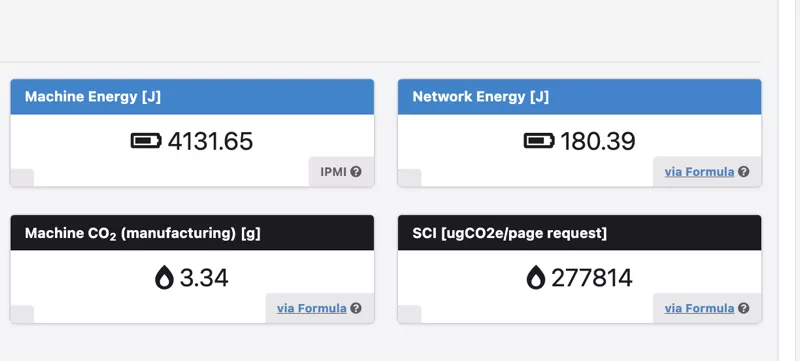
If an SCI was configured and sci: True was set also the parameters will be shown in the Measurements Tab.
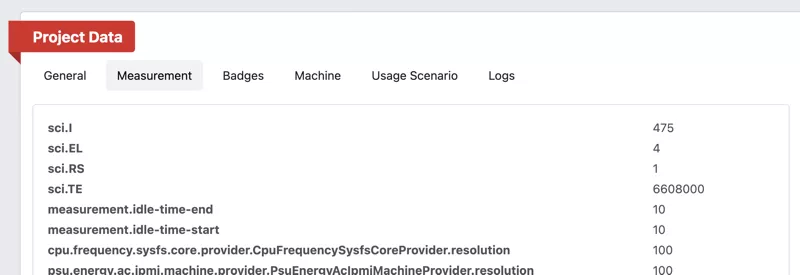
The SCI formula is specified by the Green Software Foundation
The components of the SCI are attributed by the GMT as follows:
config.yml. Set the embodied carbon of your used machineWe provide quite some example applications that showcase how the SCI can be measured with the Green Metrics Tool for APIs, CLI tools etc.